









- Automotive
- Sanding - Polishing
- One sided adhesive tapes
- Packing tapes
- Coloured - marking tapes
- Electrical tapes
- Office tapes, adhesive tapes
- Slick surface tapes
- Metal adhesive tapes
- Masking crepe tape
- Masking special tapes
- Surface protection tapes
- Foam - sealing tapes
- Anti-slip tapes
- Self-adhesive rubber cut-outs
- Special tapes
- Textile tapes
- Warning and reflective tapes
- Double-sided adhesive tapes
- Electrical insulation material
- Glues
- Materials for the production of technical labels
- Flexible stoppers, bumpers
- Velcro straps
- Primers - activators - cleaners
- Accessories for adhesives, applicators
 Monitors
 Laptops
 Desktop and gaming computers
- Accessories and Add-ons
- Backpacks and laptop bags
- Electronic gadgets
- Ergonomic accessories
- External drives
- Gamepads
- Gaming tables
- Gaming chairs
- Microphones
- Internal drives
- Cables
- Office chairs
- Keyboards
- Mice
- Power supplies
- Memory cards
- Mouse pads
- Projectors and accessories
- Mobile phone accessories
- Speakers
- Keyboard and mouse sets
- Headphones
- USB Flash discs
- Gaming steering wheels
- Scales
- Webcams
Demand for direct printing from mobile phones is increasing. Do you know how to do it?
Modern mobile phones offer attractive design, sufficient internal memory capacity, adequate performance, and a range of useful features. It is therefore no wonder that smartphones represent fully-fledged devices capable of competing with tablets and laptops. We use smartphones for online shopping, make cashless payments with them, use them for navigation or education, but that is far from all. Their excellent services will prove useful to us when printing work materials, documents, and photographs.
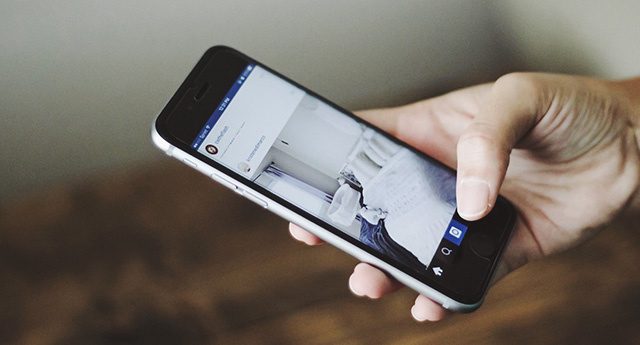
Times are changing. And with them, the devices
The times we are living in seem to have put on the fairy-tale seven-league boots. The evolution of new technologies, devices, and techniques is unprecedented and continues to accelerate at an ever faster pace. Remember the mobile phones from the end of the last century with their clumsy design, alphanumeric keypad, simple monochrome display, and compare them with today’s models. A comment is hardly even necessary. We also will not compare performance and features against each other, because we would be comparing two completely incomparable worlds. More precisely, two diametrically different devices.
When it comes to the parameters and functions of mobile phones, we don't have to go far back into the past. If, until quite recently, we wanted to print something directly from our mobile phone, we would have had to proceed similarly to a computer, that is, connect the mobile phone to the printer using a USB cable. Fortunately, printing from mobile devices is currently much easier, as both the Android and iOS operating systems support printing without the need to install any application. For wireless printing from a mobile phone, it is generally sufficient for the printer to meet two requirements. It had Wi-Fi functionality and could connect to a network.
If the printer has a Wi-Fi function, you're in luck
With new printers, meeting the first requirement should not be any significant problem, as many devices offer this function.
After fulfilling the second requirement, that is, after connecting to the network, it is then sufficient to connect your smartphone to the same network and, via AirPrint (on Apple phones) or from the Chrome browser (on Android mobile devices), send the printer a command to perform the first print job. Remember that before printing, you can make minor adjustments to the photo or document.Tip: 4 reasons why you need a Wi-Fi printer at home
More detailed “info” on how to print from a mobile phone with the Android operating system
On an Android device, you can print from the Chrome browser. What you need to do is quite simple. You just need to add a printer that can receive data via Wi-Fi or a mobile network. Then follow these steps:
- On your Android device, open the Chrome app.
- Then open the page, image, or file that you need to print.
- In the top right, click the More options icon, then Share.
- Select Print.
- At the top, select the printer you want to use.
- To change the print settings, tap the down arrow.
- Then click Print and start printing the selected images or files.
How to print from an Apple mobile device and with the iOS operating system
Apple devices, just like iOS phones, are equipped with the AirPrint wireless printing function directly from the factory, which means only one thing. When printing, you can do without another application.
However, this is only one side of the coin. The printer for communication with a mobile device must support the aforementioned AirPrint function. If you are not sure whether this is also the case with your printer, try to find out from the attached specification or from the printer manual. Alternatively, you can visit the manufacturer's website. Otherwise, the printing process is simple. You connect your mobile phone and printer to the same Wi-Fi network and then simply select the specific photo or document, the printer, specify the number of copies, and give the print command.
Tip: How to store toners and cartridges so they last as long as possible?