









- One sided adhesive tapes
- Packing tapes
- Coloured - marking tapes
- Electrical tapes
- Office tapes, adhesive tapes
- Slick surface tapes
- Metal adhesive tapes
- Masking crepe tape
- Masking special tapes
- Surface protection tapes
- Foam - sealing tapes
- Anti-slip tapes
- Self-adhesive rubber cut-outs
- Special tapes
- Textile tapes
- Warning and reflective tapes
- Double-sided adhesive tapes
- Electrical insulation material
- Glues
- Flexible stoppers, bumpers
- Velcro straps
- Primers - activators - cleaners
- Accessories for adhesives, applicators
When your inkjet printer is not printing as it should...
We've all probably experienced it by now – print defects, error messages, leaking ink cartridges, and so on. Every printing issue may have its reason and does not necessarily have to be caused every time by a fault in the purchased cartridge or a defect in your printer. In this article, we summarize the print defects of your inkjet printer or inkjet multifunction device that occur most frequently and advise you on how to avoid them or even how to fix them.
Print errors with ink cartridges (inkjet printers and inkjet multifunction devices)
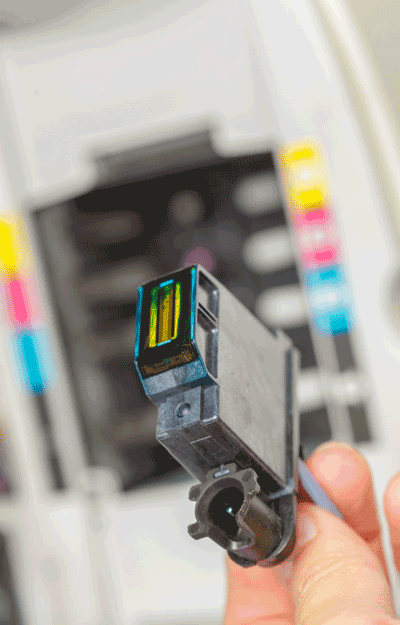
1. Spilled ink
Why?
As with toner cartridges, this may be due to improper handling during transport or a manufacturing defect.
What to do about it?
Definitely do not insert the cartridge into your inkjet printer or inkjet multifunction device and instead send it directly for a warranty claim.
2. Error message on the cartridge
Why?
Similarly to toner cartridges, it is most likely a faulty chip or other errors associated with it.
What to do about it?
Try removing the ink cartridge and cleaning its contacts, preferably with a microfiber cloth (so you don’t scratch the chip). They may be slightly oxidized, which can prevent contact with your inkjet printer or inkjet multifunction device. But many times, simply removing and reinserting the cartridge back into the printer can help.
TIP FROM US: What is your laser printer trying to alert you to? Typos and messages
3. Poor print quality
Why?
Are there missing areas on the printed parts of the paper, or do the colors differ from those on your screen? Unfortunately, there are several possible causes, but most often it is due to a faulty printhead, incorrect printer calibration, or an empty cartridge.
What to do about it?
- Run printhead cleaning (in the settings on the printer control panel) and try to print at least once a month
- Run printer calibration (using the accompanying software or the software of your inkjet printer or multifunction device)
- Get a new cartridge
4. Ghosting, or remnants from a previous print
Why?
For inkjet printers and inkjet multifunction devices, it will most likely be a print head and clogged nozzles, which the printer should usually alert you to with an error message.
What to do about it?
First, check the condition of the cartridge to see whether it is leaking in the printer or whether it has been inserted incorrectly. Then check the nozzles and use the printer maintenance program to thoroughly clean them several times. As a last option that you can handle yourself, check whether your software is up to date, including the printer drivers. However, if none of that works, you have no choice but to entrust your inkjet printer or multifunction device to a service center.
5. Stripes on paper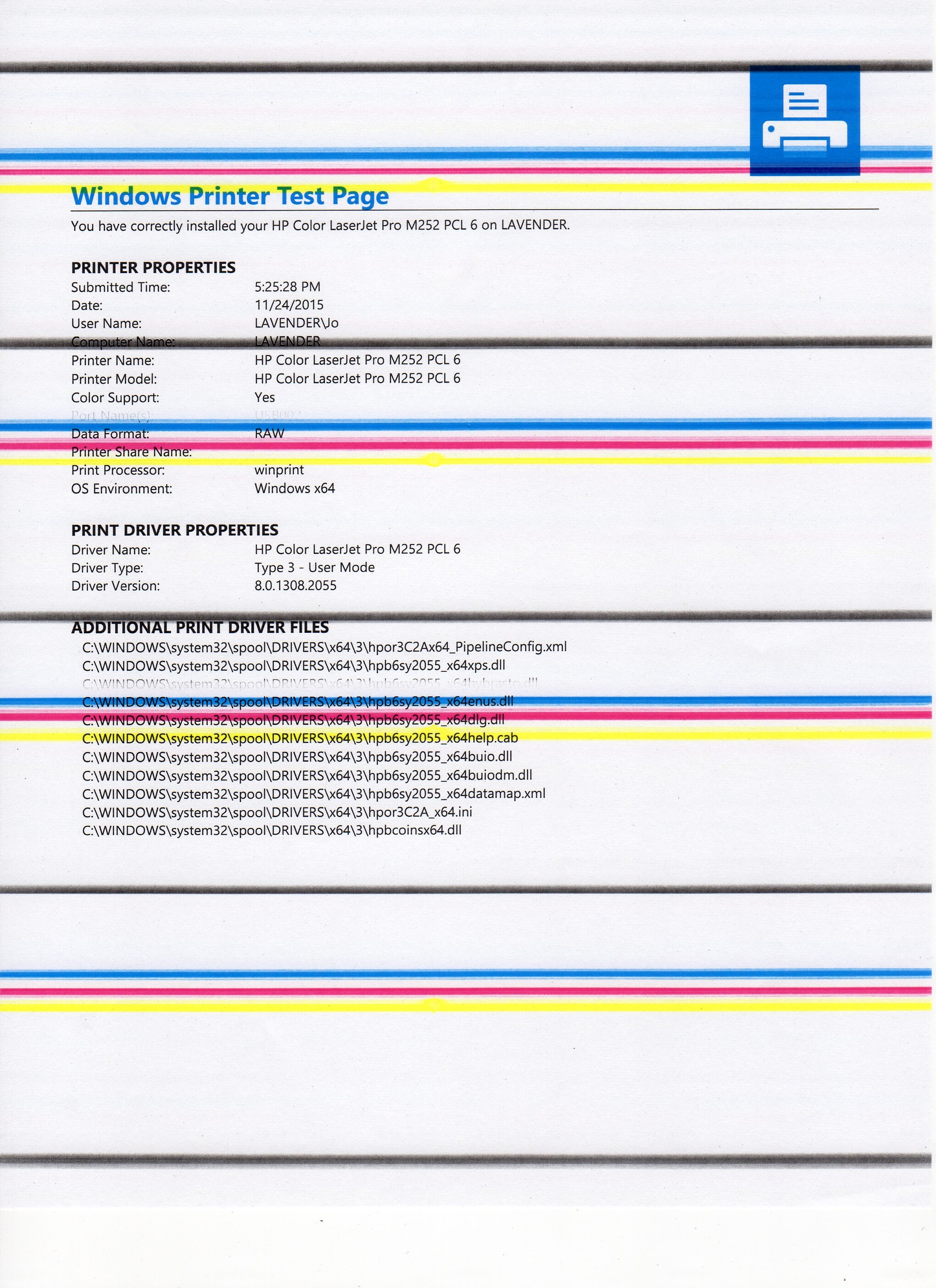
Why?
Who is responsible for those streaks on the paper or one missing color? Dried ink cartridge. This may be because you haven’t printed with the printer for a long time, but of course there may be several reasons. Expired ink cartridges, improperly refilled cartridges, placing an inkjet printer or inkjet multifunction device near a heater or in direct sunlight, or even storing them improperly.
What to do about it?
Every printer has automatic printhead cleaning, which can be started using the printer software driver on a computer, but some printers allow this function directly from their control panel. If you haven’t printed for a really long time, it is often better to run this function several times before your cartridge “comes back to life” again. But if even that doesn’t help, it is better than trying all sorts of manual cleaning methods (which can seriously damage your printer) to buy a new cartridge and try to prevent these inconveniences next time.
6. The printer is not printing
Why?
However, this is the worst possible option, and we understand that if you urgently need to print a document, it can even give you a slight “heart attack”. But first, try checking whether the printer is turned off, incorrectly connected, or whether it has a driver installed. Only then panic.
What to do about it?
In the simplest case, turn the printer on, or properly connect it to the computer or via a wireless network. That's magic, isn't it? Sure, you may think it's obvious, but this can really happen to anyone. However, if everything is fine, try restarting both the printer and the computer and reinstalling the drivers for your inkjet printer or inkjet multifunction device. So even that didn't help? Well, you still have two options. Restore the printer according to the manual and set it up as new, or the last option is again to take the printer to the appropriate service center.
7. Paper jam in the printer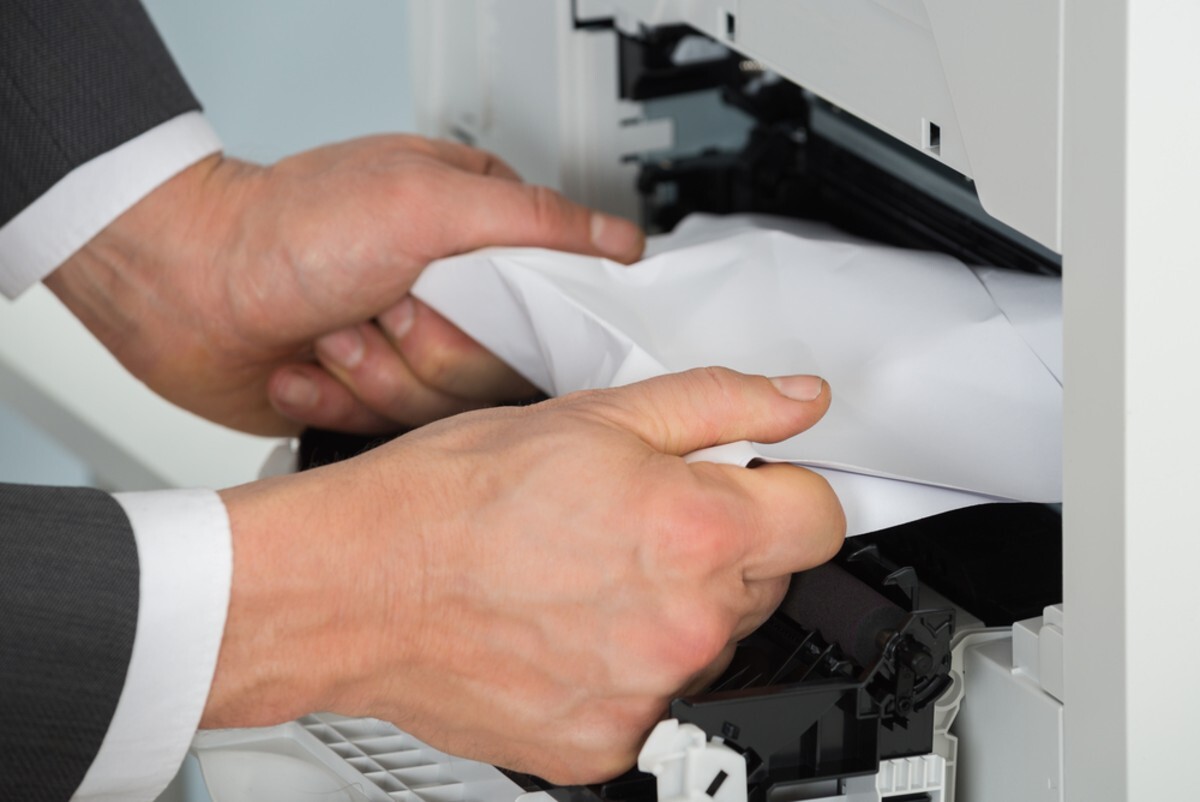
Of course, this can also happen with laser printers and laser multifunction devices.
What to do about it?
First, make sure that you are using the correct paper for printing, that you are loading it correctly, and in the correct quantity. It should not be crumpled or wrinkled, as in this case it can jam more easily. If this inconvenience does occur, do not pull the paper out of the printer by force but gradually and carefully pull it out. If a single sheet gets jammed, it is often enough to stop the print job and let the paper feed out of the printer. However, if the paper jammed due to an excessive number of sheets in the printer, we do not recommend pulling out the entire stack at once; instead, remove the sheets gradually in smaller quantities, ideally from the middle of the stack or from the bottom. This should prevent damage to the upper part, which is more prone to it, and thus unblock it.
8. The printer prints very slowly
Why?
You most likely set printing to a different paper type or print quality.
What to do about it?
Go into the printer settings and in the print properties change the paper type to plain paper. If you are printing via a wireless network, printing may be slowed down by a poor signal or something near the printer that is interfering with printing. The penultimate and better possibility may be that the cartridge chip is defective. The last and least pleasant part is that the printer software settings or its parameters are already outdated, and in this case we recommend purchasing a new inkjet printer or inkjet multifunction device.
We hope this article has helped you at least a little in resolving any printing errors and that in the future you will know how to avoid them. As you may have noticed, most problems are caused by poor-quality ink cartridges or toners, or by user errors. Therefore, always keep in mind that it pays off to purchase quality cartridges for printers and multifunction devices of all types, whether original or compatible. If you have any questions, please contact us by email or phone. We will be happy to advise you.
Sára from CDRmarket