









- Automotive
- Sanding - Polishing
- One sided adhesive tapes
- Packing tapes
- Coloured - marking tapes
- Electrical tapes
- Office tapes, adhesive tapes
- Slick surface tapes
- Metal adhesive tapes
- Masking crepe tape
- Masking special tapes
- Surface protection tapes
- Foam - sealing tapes
- Anti-slip tapes
- Self-adhesive rubber cut-outs
- Special tapes
- Textile tapes
- Warning and reflective tapes
- Double-sided adhesive tapes
- Electrical insulation material
- Glues
- Materials for the production of technical labels
- Flexible stoppers, bumpers
- Velcro straps
- Primers - activators - cleaners
- Accessories for adhesives, applicators
 Monitors
 Laptops
 Desktop and gaming computers
- Accessories and Add-ons
- Backpacks and laptop bags
- Electronic gadgets
- Ergonomic accessories
- External drives
- Gamepads
- Gaming tables
- Gaming chairs
- Microphones
- Internal drives
- Cables
- Office chairs
- Keyboards
- Mice
- Power supplies
- Memory cards
- Mouse pads
- Projectors and accessories
- Mobile phone accessories
- Speakers
- Keyboard and mouse sets
- Headphones
- USB Flash discs
- Gaming steering wheels
- Scales
- Webcams
What does your laser printer want to alert you to? Typos and messages
We've all probably experienced it already – print defects, error messages, spilled toner powder, and so on. Every printing defect may have its reason and it does not necessarily have to be the fault of the purchased cartridge every time, or a defect in your laser printer. The printing defects that occur most frequently are summarized for you in this article, and we will advise you on how to avoid them or even how to fix them.
Print defects with toner cartridges (laser printers and laser multifunction printers)
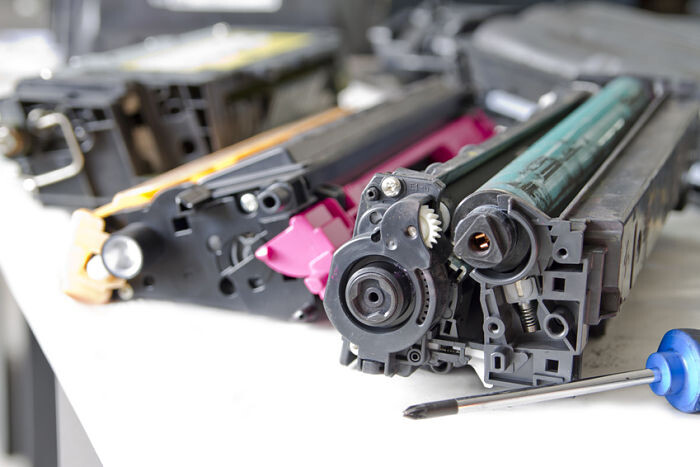
1. Spilled toner
If, after opening the packaging, you notice powder spilled from a new toner, definitely do not insert the cartridge into your printer, as it could contaminate it, and you certainly do not want that. It is better to file a complaint or request a replacement. This is because it is most likely either careless handling by the carriers on the way to you, or a manufacturing defect.
2. Error message
Why?
An error message pops up on your monitor display, unpleasantly surprising you. What now? Defective toner chip, or is it installed incorrectly? Yes, that can happen exactly.
What to do about it?
Some printers offer the option of a toner reset in the printer menu. Whether you try a software restart or a manual restart, where you simply remove the toner from the printer and then put it back in, it could solve your problem. If restarting the toner does not resolve it, nor confirming the error message using the “OK” button, you will have to either replace the toner or file a warranty claim.
OUR TIP: When your inkjet printer isn’t printing as it should...
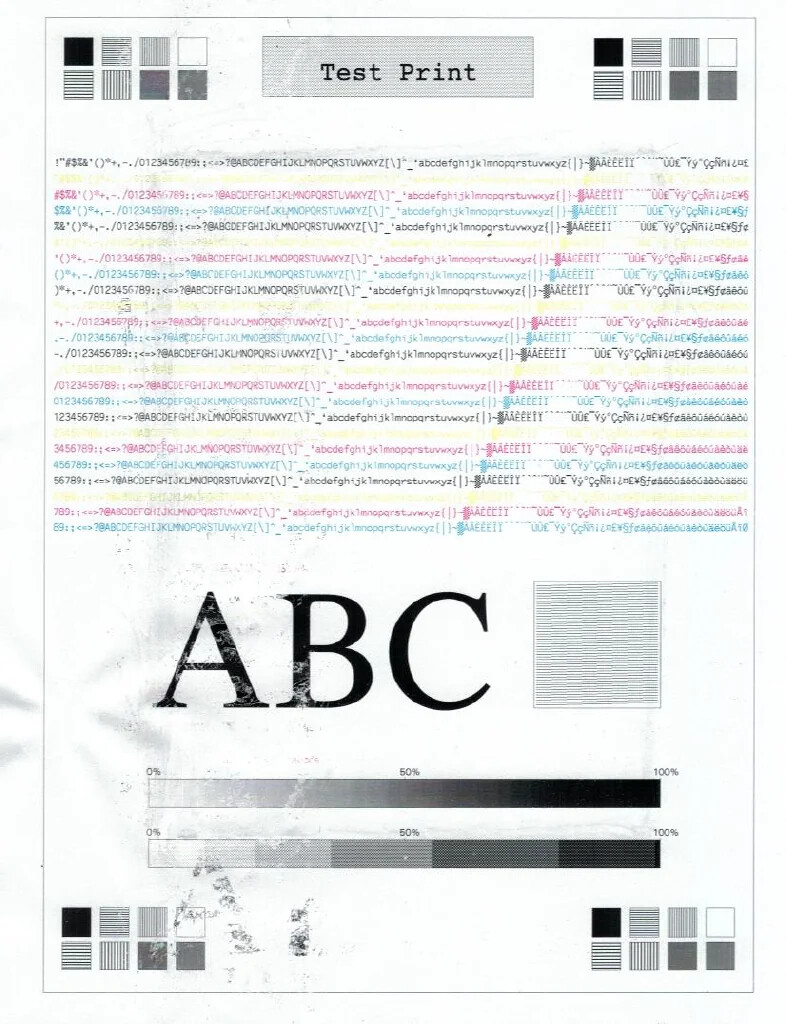
3. Irregular smudges or dirty paper
Why?
The cause of smudges on the paper is probably a fault in the printer itself. Most likely, toner powder has come loose from the toner cartridge and is now causing trouble on your paper. This is caused either by some printer malfunction, an incorrectly installed toner, or improperly refilled powder in the toner.
What to do about it?
How to fix it? This inconvenience should, in most cases, "fix itself" after printing a few more sheets of paper, as the toner issue gradually "fades away". However, if it does not disappear even after that, it is time to visit a specialist who can professionally clean your laser printer or multifunction device. Of course, but even that is not 100% certain, since the fault may also be, for example, on the cylinder side or in other components. Drums generally have a long service life and can withstand printing up to tens of thousands of pages, but this issue may indicate that it has reached its print limit. In such a case, the question arises whether the printer needs to be repaired, or whether it would be more worthwhile for you to buy a new one straight away.
4. Horizontal stripes
Why?
This unpleasant problem is most likely caused by a defective optical or magnetic drum.
What to do about it?
However, we definitely do not recommend attempting the repair from the comfort of your home, as there is nothing you can do about it yourself. If it is advantageous for you and your wallet, you can have the drum replaced, or rather buy a new laser printer, since this spare part is usually quite expensive.
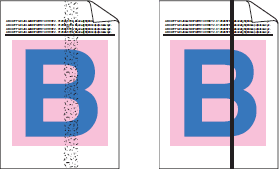
5. Vertical stripes
Why?
If vertical streaks are appearing on your paper, most likely the wiper blade in the printer is causing trouble. Its purpose is to wipe excess toner powder from the photoconductor drum after each rotation. If this blade is not working as it should, excess toner powder goes directly from the roller onto the paper, causing trouble in the form of vertical streaks on your documents.
What to do about it?
Unfortunately, in this case as well, you will need to seek out a specialist who will replace this spare part for you, but the advantage compared to the previous case is that this component is much more affordable, and you will not have to consider buying a new laser printer or laser multifunction device.
6. Ghosting, or remnants from a previous print
Why?
Is your printer most likely haunted? Definitely not. Like almost every phenomenon, this too has its explanation. This is because it is a defect of the optical drum, which should be completely discharged after each rotation from the previous charge so that a different text or image pattern can be printed on the next page. Unfortunately, this does not happen when it malfunctions, so it repeats the previous text or motif on the next sheet of paper.
What to do about it?
However, whether the drum itself is damaged directly, or the panel used for its discharge, you must entrust your printer to a professional who specializes in replacing components. They will replace the defective spare part for you, so there will no longer be any sick optical drum haunting your laser printer.
7. The printed part of the document is too faint compared to the rest
Why?
So this can have two causes for us. Either your toner is running low, or the protective strip has been left on the toner cartridge, which is intended to prevent unwanted toner powder leakage as much as possible.
What to do about it?
The long-term solution to this problem is, of course:
- replace the toner if it has run out
- remove the protective tape if it is brand new
However, if you urgently need to print another batch of documents in better quality, it may help in this case to remove the toner cartridge and shake it.
This should mix the toner powder nicely so that you can at least squeeze a little more out of it. We also recommend doing the same with a new toner so that the toner powder is evenly distributed throughout the toner cartridge.8. Print too light across the entire document
Why?
Just like in the previous point, you have two options. Either the toner is running low, or there is still protective tape on the cartridge.
What to do about it?
The same thing again – replace the toner, or remove the protective tape from the new toner.
9. Low color saturation, or even incorrect colors

Why?
Have you ever heard the term "color calibration"? Graphic designers or photographers work with it almost every day. It is a process in which toner cartridges must be adjusted so that they work together and print the correct shades. Most printers handle this automatically on their own, but unfortunately not all of them do. The second possibility may be that the toner powder in the toner cartridge is running low, but that is less likely with this printing error.
What to do about it?
Start the printer calibration. It sounds like a job for professionals, but you can easily handle it yourselves. Just launch it using additional software or the printer software. After completing the calibration, the colors should already be back to normal. But also keep in mind that the quality of your computer's screen and its color settings matter as well. If you have set the colors specifically, then the colors may appear differently on the screen than subsequently on paper. Also check whether your screen is set to “night mode”, as this can make colors appear yellowish. If that still does not help, check the toner status and, if necessary, get a new one.
10. Black page
Why?
Here, the only possible cause is a poorly charged optical drum. After the cylinder rotates, the toner adheres to its entire surface and is subsequently transferred onto the paper.
What to do about it?
Definitely entrust it to a professional. If necessary, they will take care of replacing one of the components of your laser printer.
11. Pale print on curled paper
Why?
Paper warping may be caused by environmental humidity. On damp paper, the toner powder will not spread evenly, which causes the printed page to look unattractive.
What to do about it?
Definitely store paper in a drier environment.
12. Paper jam in the printer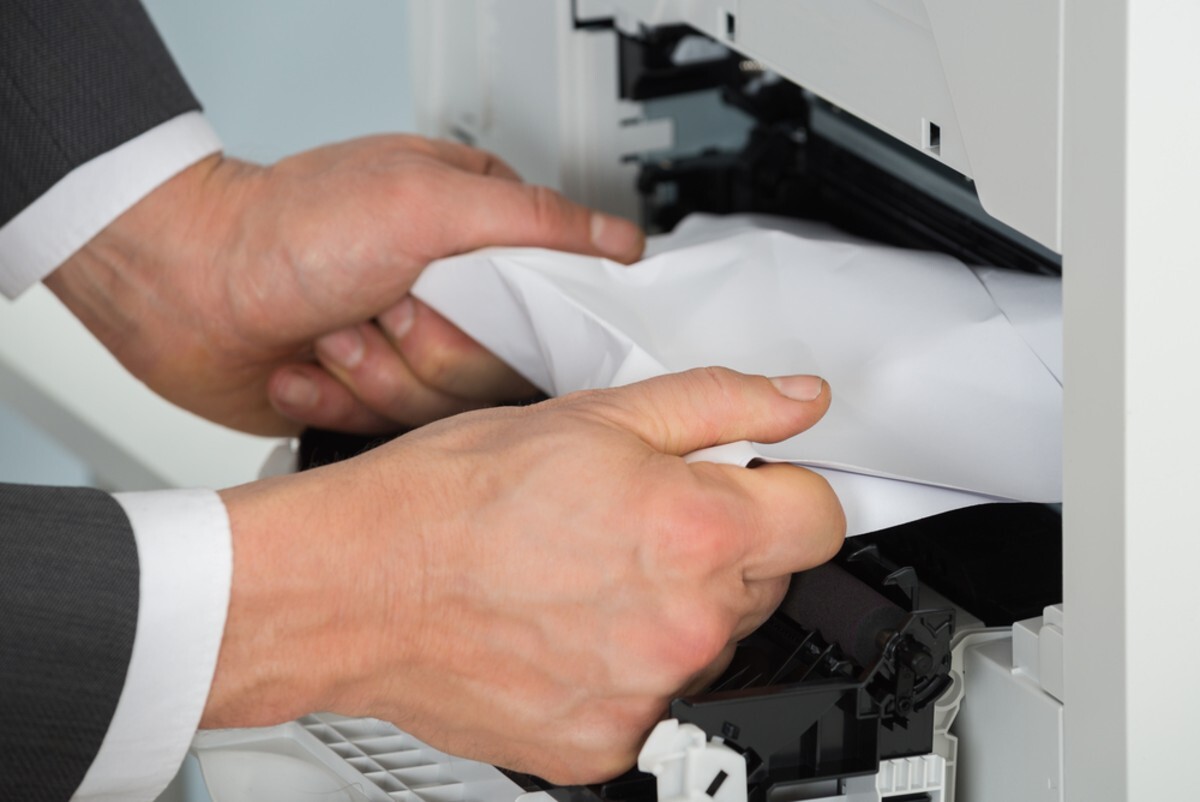
What to do about it?
First, make sure that you are using the correct paper for printing, that you are loading it correctly, and in the correct quantity. It should not be crumpled or wrinkled, as in this case it can jam more easily. If this inconvenience does occur, do not pull the paper out of the printer by force but gradually and carefully pull it out. If a single sheet gets jammed, it is often enough to stop the print job and let the paper feed out of the printer. However, if the paper jammed due to an excessive number of sheets in the printer, we do not recommend pulling out the entire stack at once; instead, remove the sheets gradually in smaller quantities, ideally from the middle of the stack or from the bottom. This should prevent damage to the upper part, which is more prone to it, and thus unblock it.
We hope this article has helped you at least a little in resolving any printing errors associated with laser printers and laser multifunction devices, and that in the future you will know how to avoid them. As you may have noticed, most problems are caused by defective toner cartridges or user errors. Therefore, always keep in mind that it pays off to purchase quality cartridges for printers and multifunction devices of all types, whether original or compatible. If you have any questions, please contact us by email or by phone. We will be happy to advise you.
Sára from CDRmarket