









- One sided adhesive tapes
- Packing tapes
- Coloured - marking tapes
- Electrical tapes
- Office tapes, adhesive tapes
- Slick surface tapes
- Metal adhesive tapes
- Masking crepe tape
- Masking special tapes
- Surface protection tapes
- Foam - sealing tapes
- Anti-slip tapes
- Self-adhesive rubber cut-outs
- Special tapes
- Textile tapes
- Warning and reflective tapes
- Double-sided adhesive tapes
- Electrical insulation material
- Glues
- Flexible stoppers, bumpers
- Velcro straps
- Primers - activators - cleaners
- Accessories for adhesives, applicators
Why is the printer offline and how can I fix it?
Today's fast-paced world requires us to be constantly online—not only us, but also all the devices we use. Printers are of course no exception. Nevertheless, it sometimes still happens that a home or office printer "goes" into offline mode, in which it is completely useless to you.
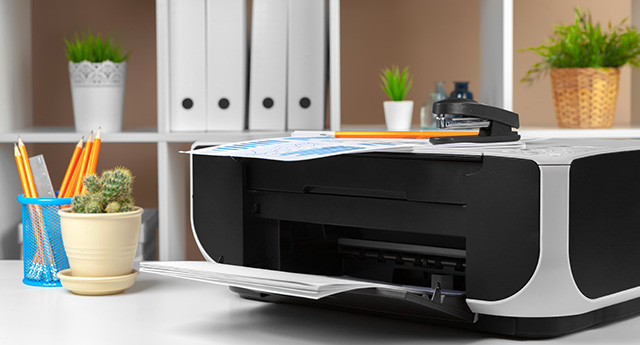
There is not the slightest doubt that this is an unpleasant situation. Especially in cases when, at work, you are about to print important documents that should have been on your colleagues' desks long ago, or even worse, in the hands of an impatient boss. Offline mode, however, certainly won't please you even at home. Whatever the case may be, instead of cursing at a malfunctioning printer, it will be better if you try to get it running again as quickly as possible.
When a restart doesn’t help
There may be several reasons why the printer is offline. Sometimes a problem with an offline printer can be solved by simply turning the printer off and on again, other times you will have to investigate the cause a little longer. First, try to bring the printer to its senses by turning it off and unplugging it from the power outlet. After about 30 seconds, plug the printer back into the power outlet and turn it on again. If your printer has not returned to online mode and still does not communicate with your computer, you will have no choice but to try the following steps.
First, it is also worth checking whether the printer settings have not accidentally been changed to use offline mode. It’s nothing complicated, and you’ll find out the result in a few seconds. Just click in sequence on your computer: Start > Settings > Devices > Printers & scanners. Then select the printer and click Open Queue. In the Printer section, check whether the Use Printer Offline option is selected. If this option is selected, deselect it.
Tip: These signs indicate that you need a new printer
There may be other causes behind offline mode
It may sound trivial, but for wired printers it makes sense to check the cables. Make sure that the USB cable is properly connected to the printer and the computer. If it happens that the computer does not recognize the USB, try automatic diagnostics and repair in the operating system you are using.
For wireless devices with a Wi-Fi module, it will be necessary to verify whether the printer is connected to the same Wi-Fi network as the laptop or computer. In the printer’s built-in menu, options can usually always be displayed to check the network and its connection to Wi‑Fi. Many printer models offer the option to run a printer wireless connection test. However, the procedure varies between individual brands, so follow the specific instructions found in the user manual or on the printer manufacturer's website.
Tip: 4 reasons why you need a Wi-Fi printer at home
The possibilities are far from over
When trying to return the printer to online mode, you can try removing the printer and reinstalling the printer. In neither case is it anything complicated.
To remove a printer, simply click Start and then go to Settings > Devices > Printers & scanners. In the Printers & scanners section, find your printer, select it, and then click Remove device.
Device installation is also quick. It only requires clicking Start and then the Settings > Devices > Printers & scanners items. Next, click on the Add a printer or scanner item. Wait until all available printers are displayed, including yours. Select it and then confirm the Add device item.
If nothing helps, try installing new drivers
The printer's offline mode may also be related to corrupted drivers. Their damage can be caused by various circumstances and situations. Among them, we can mention unexpected power outages or viruses. Primarily, however, it does not necessarily have to be damaged drivers, as many printers require the installation of new drivers for trouble-free operation.
If the printer is not working optimally in online mode, or if you want to prevent problems, use the latest printer drivers, which you can find on the manufacturer’s website for the device and download.