









- Automotive
- Sanding - Polishing
- One sided adhesive tapes
- Packing tapes
- Coloured - marking tapes
- Electrical tapes
- Office tapes, adhesive tapes
- Slick surface tapes
- Metal adhesive tapes
- Masking crepe tape
- Masking special tapes
- Surface protection tapes
- Foam - sealing tapes
- Anti-slip tapes
- Self-adhesive rubber cut-outs
- Special tapes
- Textile tapes
- Warning and reflective tapes
- Double-sided adhesive tapes
- Electrical insulation material
- Glues
- Materials for the production of technical labels
- Flexible stoppers, bumpers
- Velcro straps
- Primers - activators - cleaners
- Accessories for adhesives, applicators
 Monitors
 Laptops
 Desktop and gaming computers
- Accessories and Add-ons
- Backpacks and laptop bags
- Electronic gadgets
- Ergonomic accessories
- External drives
- Gamepads
- Gaming tables
- Gaming chairs
- Microphones
- Internal drives
- Cables
- Office chairs
- Keyboards
- Mice
- Power supplies
- Memory cards
- Mouse pads
- Projectors and accessories
- Mobile phone accessories
- Speakers
- Keyboard and mouse sets
- Headphones
- USB Flash discs
- Gaming steering wheels
- Scales
- Webcams
Paper jam in the printer and its removal
Frequent and seemingly unwarranted paper jams in the printer most likely indicate mechanical wear of the printer's components. However, you may occasionally encounter paper jams even with new printers, where component wear is out of the question. What are the possible causes of a paper jam in a printer, and how can this situation be dealt with? You will find the answer not only to these, but also to other questions in the following lines.
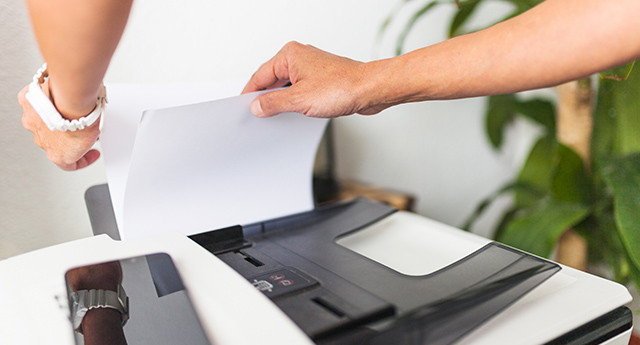

Paper jam in the printer and causes
There can be several causes behind the occasional paper jam in a printer. Among the most common are the use of low-quality office paper and incorrectly loading paper into the printer tray. If paper is loaded incorrectly into the tray, multiple sheets may be fed at the same time, ultimately resulting in a paper jam inside the printer. However, of course, this is still far from everything.
A paper jam in the printer can be caused by an overfilled tray or dirt and various impurities in the system of the device’s components through which office paper passes during the printing process. However, we must mention incorrectly adjusted paper guides, or damaged or unsuitable office paper.
TIP: Do you know what parameters office paper should have? You will learn about it in the article the ideal office paper for the office.
How to remove jammed paper from a printer
Clearing a paper jam may vary not only depending on the printing technology used (laser or inkjet printers), but the procedure for removing the paper may also differ between individual models, even within the same brand. The best thing to do is to consult the printer's user manual, where you will find the specific procedure for clearing the jam. If for some reason you do not have the operating instructions, download them from the printer manufacturer's website.
However, so that it does not remain only words, we will try to explain to you the possible procedure for clearing a paper jam from a laser printer. Before we look at the specific steps, we would like to remind you that jammed paper should be removed in the direction of the print path, using a smooth and gentle motion when pulling it out. If you are unable to remove the entire paper, do not hesitate to ask a service technician for help.
Paper jam in the tray (laser printer)
If office paper is jammed in the printer tray, try proceeding as follows:
- Carefully pull the tray out of the printer.
- Slowly pull out the jammed paper with both hands; the paper will come out more easily if you pull it smoothly downward.
- Check that the paper does not exceed the maximum paper height mark and adjust the guides to fit the office paper size. Check that the guide rails are firmly seated in the holes.
- Insert the paper tray back into the printer.
- Press the corresponding button to resume printing.
Paper jam at the back, behind the printer's rear cover (laser printer)
In this case as well, you can remove the jammed paper using fairly simple steps. Just follow these points:
- Turn off the printer and unplug the power cable from the socket.
- Open the rear cover of the printer.
- Pull the green tabs on the left and right sides toward you and fold down the fuser unit cover.
- Carefully pull the jammed paper out of the fusing unit with both hands. Extraction must be gentle and smooth.
- Close the brewing unit cover and return the green tabs on both the left and right sides to the position they were in before opening the cover.
- Close the printer's rear cover.
- Connect the printer to the power supply and turn on the printer.
Paper jam inside the printer (laser printer)
You can deal with a paper jam inside the printer as follows:
- Turn off the printer and unplug the power cable from the socket.
- Pull to open the printer's top cover.
- Carefully pull out the drum unit and the toner cartridge. Place them on a flat and clean surface on a piece of paper or cloth. Try not to touch the electrodes while doing so to avoid possible damage to the printer from static electricity.
- Slowly release the jammed paper.
- Insert the drum unit and toner cartridge back into the printer. If the laser printer has multiple sets of drum units and toner cartridges, repeat this procedure. Always check that the color of the toner cartridge matches the color marking on the printer.
- Close the printer's top cover.
- Connect the printer to the power supply and turn on the printer.
TIP: Do you know how paper was made?Read interesting facts about paper that you may not have known about this material until now.