









- One sided adhesive tapes
- Packing tapes
- Coloured - marking tapes
- Electrical tapes
- Office tapes, adhesive tapes
- Slick surface tapes
- Metal adhesive tapes
- Masking crepe tape
- Masking special tapes
- Surface protection tapes
- Foam - sealing tapes
- Anti-slip tapes
- Self-adhesive rubber cut-outs
- Special tapes
- Textile tapes
- Warning and reflective tapes
- Double-sided adhesive tapes
- Electrical insulation material
- Glues
- Flexible stoppers, bumpers
- Velcro straps
- Primers - activators - cleaners
- Accessories for adhesives, applicators
Creating business cards in Word (guide)
Although it may sometimes seem to you that in today’s overly technological world business cards have lost their importance, the opposite is true. Business cards, despite the many forms of electronic communication, are still able to fulfill their function, and nothing indicates that this should change in the near future.

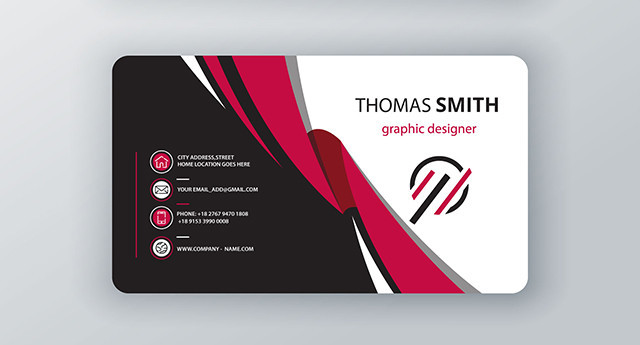
Business cards in the past and today
Before we look at the guide itself, we would like to mention a few basic facts about business cards.
The history of business cards dates back to the 15th century. century in China, in Europe until the 17thcentury. Business cards have, of course, changed over the years not only in their appearance, but also in their function and significance. While in the recent past business cards were mainly the domain of managers, bankers, real estate agents, and other similar professions, today they are commonly used by people in many other fields as well, and that is perfectly fine. In mutual communication and social interaction, business cards still have their firm place even in the 21st century.century.Business cards are even associated with etiquette today, which defines how they should be received, whether they should be handed over, and what form they should take. In the case of business cards, it’s nice that if you have a sense of style and master at least the basics of graphic design, you can create them yourself. And you don't have to be helpless even if graphic design is all Greek to you. There are several online tools available on the internet that offer a range of pre-made templates.
If you do not have strict requirements for business cards, you can create business cards in Word. You only need the aforementioned Word (version 2007 and later), an internet connection to download the template, special paper for printing business cards, and a suitable printer. And so that we don't forget, you need to know what a quality business card should contain.
What a good business card should offer
When creating business cards, you can let your imagination run wild, because these small cards do not have to look boring at all, but remember that less is sometimes more and do not overdo the design.
Business cards, much like appearance, reveal more about you than you might be willing to admit.This certainly applies to the information listed on the business card. They should contain only important contact details, so you should not try to cram in the company headquarters, branch addresses, several phone numbers, your personal address, company ID number, and other information from the commercial or trade register. With such a business card, you will commit harakiri like Japanese samurai or at the very least leave an awkward impression on your business partner.
A good business card should therefore offer only the essentials. Be practical and include one email address and one phone number on the business card, even if you have several contacts. It is better to provide one mobile number that you normally use and answer than to unnecessarily list several contacts on which you are usually less often reachable.Remember that a private address does not belong on a business card. If you run a business and have, for example, an online store, it is better to provide a link to the e-shop website, because no one is interested in where you live.
Currently, QR codes are popular on business cards, as they can contain contact information, as well as links to websites, social media, or photos. The recipient of the business card can easily scan the QR code using a smartphone app, and your profile will be displayed on their screen.
Instructions for creating a business card in Word
In the following lines, we bring you a simple guide to creating business cards in Word, suitable for anyone who wants to create a simple business card themselves.
Template selection
In Word, just like with other online tools, business cards are created using pre-designed graphic templates. Templates will make it easier for you to choose the size of business cards, select fonts, arrange contact details, and create the color design of the business card.
Selecting a template is easy. After starting Word, simply click File in the menu, then New, and here select the Business Cards template group. Which template you prefer depends solely on your taste. However, click to select the chosen template and download it. After downloading, you will have a document with pre-prepared business cards available, which you can continue to work with.
Editing text and business cards
When editing multiple pre-prepared templates, you will appreciate the fact that editing one business card on a template is reflected in the editing of all copies.
Simply put, on a template with ten business cards, you edit only one card and the same change is automatically applied to the remaining nine copies of the business cards. In principle, however, it is not a problem to create only one business card and then copy it.On business card templates, you can of course delete unnecessary text or change the font (typeface), its color, and size. You can make these changes individually or after a bulk selection on the Home tab or on the Design tab. Here are Themes, Colors, Fonts, and Effects. There are many options, and Word certainly won't disappoint you with its color combinations.
Sometimes it may happen that the business cards do not have the required size, so you will need to adjust their dimensions. You can handle the adjustment on the View tab. Turn on the Grid and Ruler, and adjust the business card dimensions according to the grid by dragging the edges.
Business card printing
After all the adjustments, it may be time to print the business cards. Before printing, on the View tab, select Print Layout. This way, you can make sure what the business cards will look like. However, you can also print a single proof sheet of business cards on regular office paper, and if everything is fine, print the business cards on special paper. You can also achieve relatively good business card quality by printing business cards on high-quality photo paper.
TIP: Our guide will help you choose photo paper for your printer..